How to access Prototype mode
Visily’s Prototype mode lets you create interactive app flows by connecting screens or elements. You can simulate real user journeys, making your designs feel like a real app, even before development starts.
Before you start
Make sure your board includes the screens or elements you want to use in your prototype.
How to access Prototype mode
You can access Prototype mode in either of these ways:
- Click the Prototype icon in the top bar.
- Press 2 on your keyboard.
What you can do in Prototype mode
When you enter Prototype mode, the Prototype panel will appear on the right side of your screen. It includes properties that help you smoothly create and customize your prototype interactions.
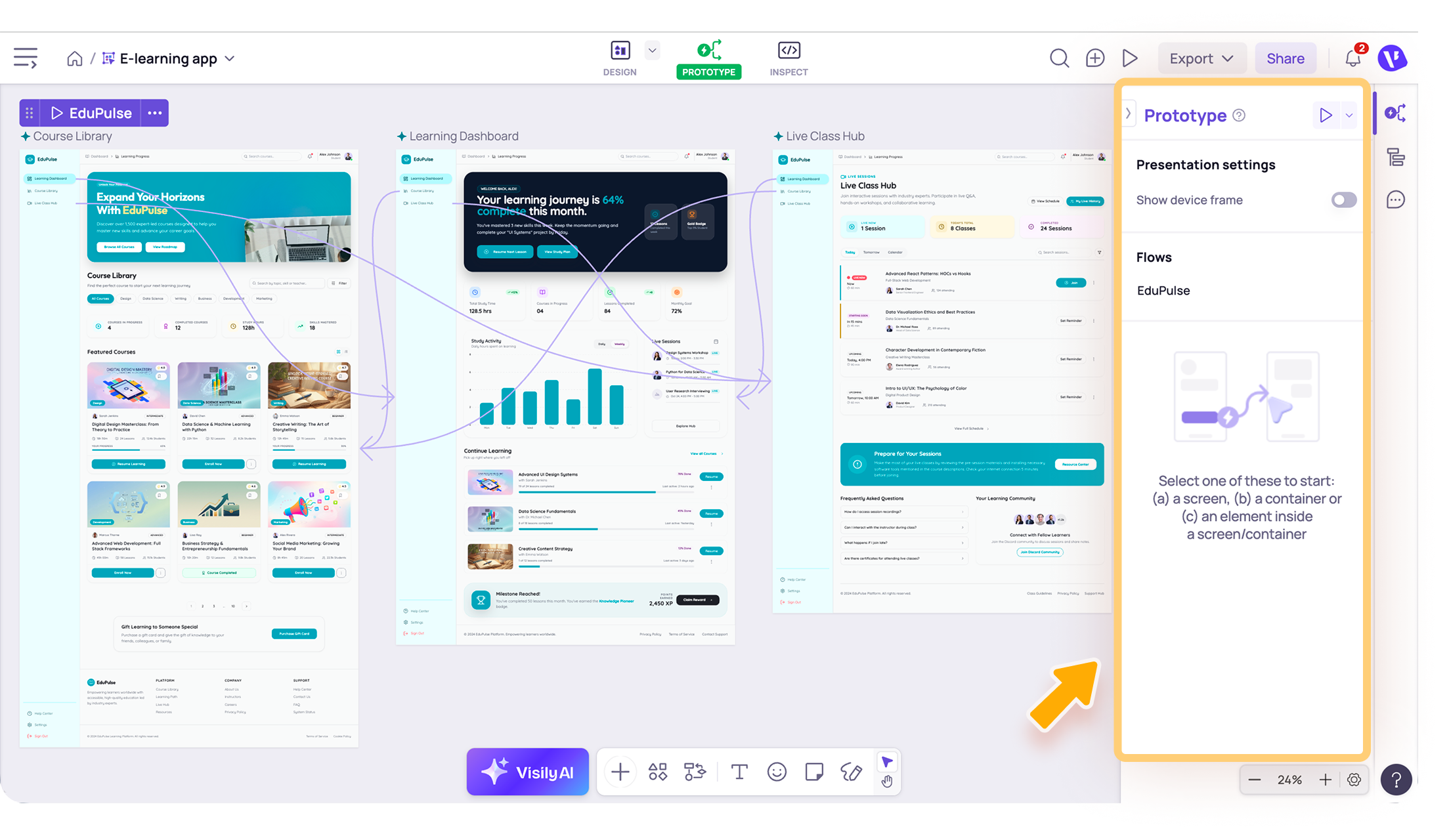
- Presentation Settings: Adjust how your prototype appears when presented.
- Flows: View and manage prototype flows in your board.
- Scroll behaviors: Set how screens or elements scroll in the prototype. This setting appears in the Prototype panel when you select a screen or element.
- Interactions: Add and manage prototype interactions between screens or elements. This setting appears in the Prototype panel when you select a connection line.

Once your prototype is set, you can launch the presentation or quick preview to see how your flows work together.
Note
- Prototype mode is for setting up and managing interactive prototype behavior. To edit your design, switch back to design editing mode.
- If you generate apps or flows with Visily AI Assistance, the generated screens may already include prototype connections.
Need more help?
If this does not solve your issue, contact support and include a screenshot if possible.