How to create a folder
Folders in Visily help you neatly organize your boards, making it easier to manage projects, group related designs, and keep your workspace clutter-free.
How to create a folder
- Open the workspace where you want to create a folder.
- From the left panel, select the space where you want to create the folder, such as a Team Space or Private Space.
- Create a folder using one of these options:
- In the main workspace area, select Create folder next to the board creation options.
- Or click the Create new icon (+) next to the space name, then select Create folder.
- You will be taken to the folder view. From there, you can rename the folder in either of the following ways:
- Double-click the folder name, enter the new name, and press Enter to save.
- Open the dropdown menu next to the folder name, select Rename, enter the new name, and press Enter to save.
Once created, the folder will appear in the selected space. You can move related boards into it to keep your workspace organized.
You can also create a new board directly inside the folder using the same steps as creating a board from a space view.
Manage folders
To manage a folder, open the More actions menu next to the folder name.
Available actions include:
- Share the folder or copy its link
- Rename the folder
- Delete the folder
- Move the folder to another Team Space or Private Space within the same workspace

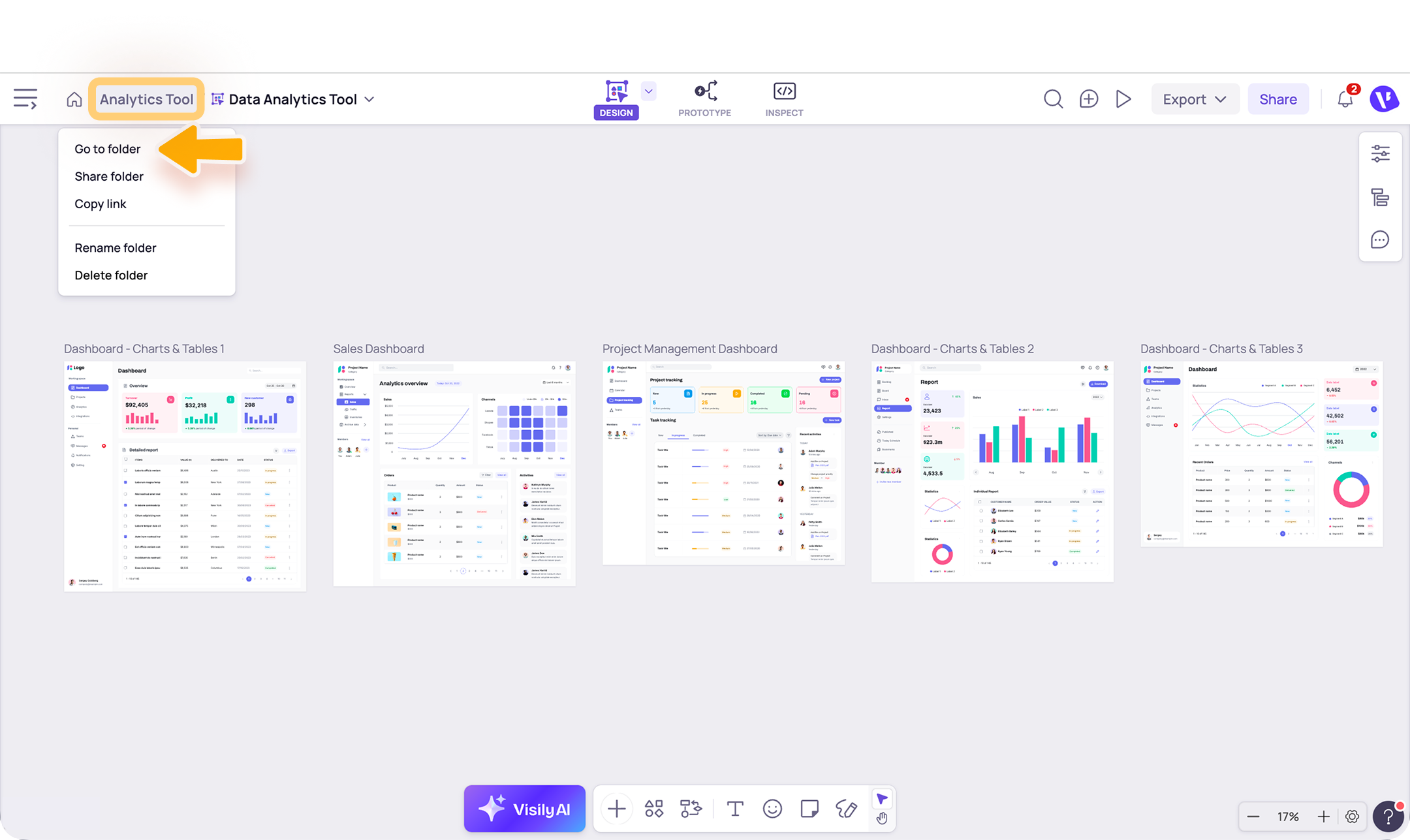
When working in a board, you can click the folder name to open the action menu for its parent folder. From there, you can manage the folder or select Go to folder to quickly return to the folder view.
Note
- A Private Space is only available on paid plans.
- Currently, Visily does not support moving boards or folders between workspaces. To transfer a design to another workspace, you can copy and paste the design from a board into a new board in the target workspace.
- Deleted boards and folders can only be recovered within the data recovery period available for your plan. After that period, deleted data cannot be restored. Learn more at How to restore a deleted board or folder.
Need more help?
If this does not solve your issue, contact support and include a screenshot if possible.