How to fill content in your design with AI

How to fill content in your design with AI

Use Fill Content to generate realistic, contextual text directly within your design. Instead of manually replacing placeholder text, describe the content you need and let Visily AI generate it for the selected element.

Before you start

Make sure you have permission to edit the board and select a supported text-based element or Smart Component.

Generate content with AI

  1. Select the element you want to fill with content.
  2. Open Fill Content from the element toolbar. Select Generate with AI.


  3. Enter a prompt describing the content you want, then select generate to create it.


  4. Review the generated content and edit it manually if needed.
Idea
Include enough context in your prompt to help Visily AI generate relevant content. For example: Add a short description for a signature pasta dish at an Italian restaurant.

Fill content in tables

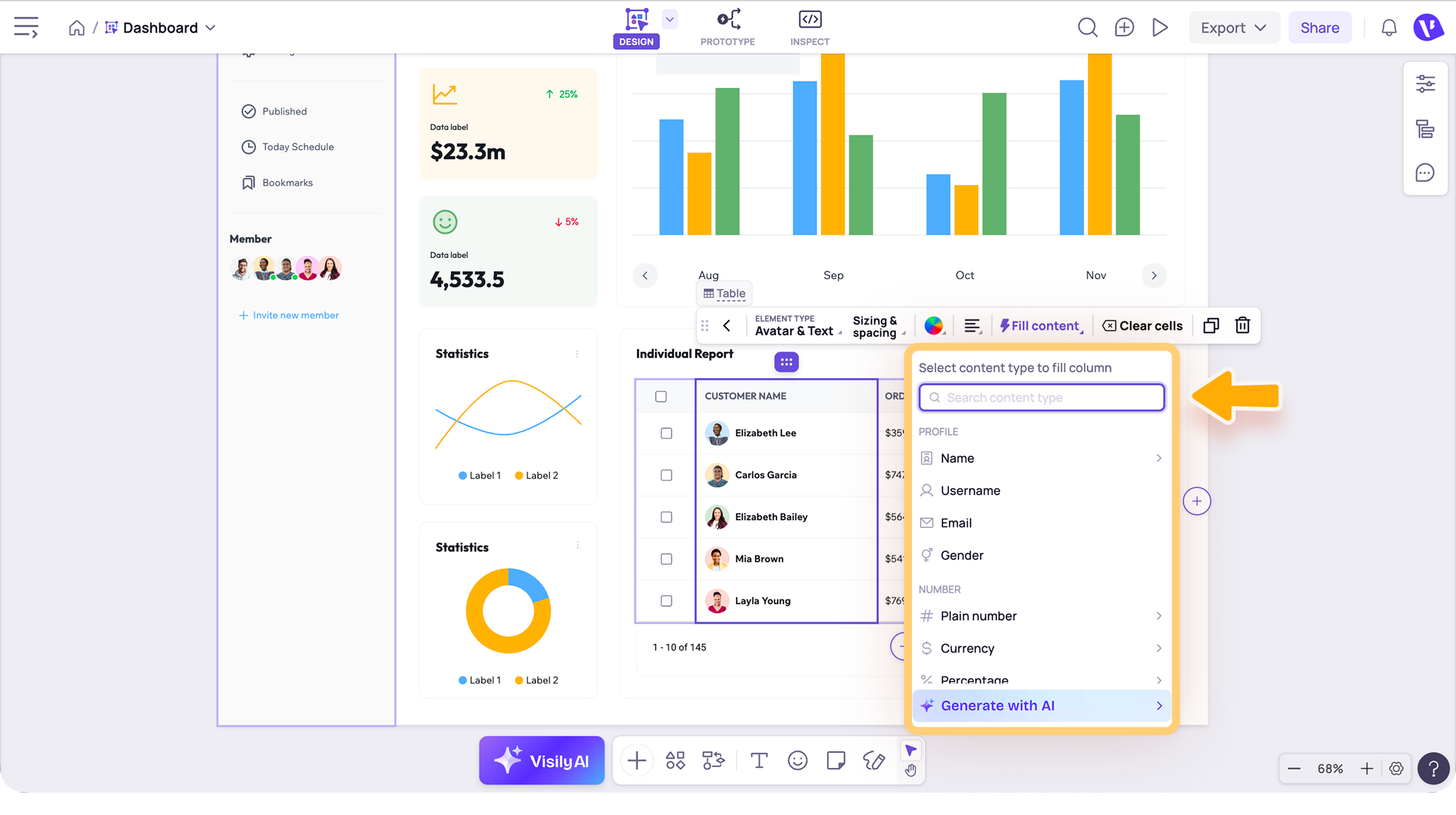
For table columns that contain text, you can also use Fill Content to generate contextual data for multiple cells, such as names, email addresses, dates, addresses, or numeric values.
Select the relevant table column, then open Fill Content from the toolbar and generate the type of content you need.
Notes

  1. The available Fill Content options may vary depending on the selected element.
  2. Review AI-generated content before using it in your final design and adjust it as needed.
Need more help?
If this does not solve your issue, contact support and include a screenshot if possible.
    • Related Articles

    • What you can do with the Visily AI Chat Assistant

      This article gives an overview of how you can use the Visily AI Chat Assistant to support your design process. What you can do with the Visily AI Chat Assistant The Visily AI Chat Assistant helps you generate and refine designs throughout your design ...
    • How to rename design layers with AI

      Use Rename Layers with AI to replace unclear or generic layer names with relevant, descriptive names. This helps keep complex designs organized and makes layers easier to find, understand, and manage. Before you start Make sure you have permission to ...
    • How to use the Visily AI Chat Assistant to generate your design

      Meet the new agentic Visily AI, your smarter way to turn ideas into polished designs! With the Visily AI Chat Assistant, you can generate screens, components, diagrams, and images from prompts, plans, references, and design instructions. Even better, ...
    • How to guide AI generation with presets

      This article explains how to guide AI generation with presets in Visily. Presets help you steer the AI toward the type of output, style, and visual direction you want. Use presets to guide AI generation You can use the following presets and guidance ...
    • How to set global instructions for AI

      This article explains how to set global instructions for AI in Visily. Global Instructions help you guide the AI with consistent preferences, so generated results stay more aligned with your project’s style, context, and requirements. Set up Global ...