How to organize your workspace
Your Visily workspace is where you and your team create, manage, and collaborate on designs. Understanding how the workspace is structured can help you keep boards, folders, and shared work easier to find.
Before you start
- You can be part of multiple workspaces at the same time. Make sure you are in the correct workspace before creating, moving, or managing boards and folders.
- Some workspace areas and settings may depend on your plan, role, and permissions.
Workspace structure
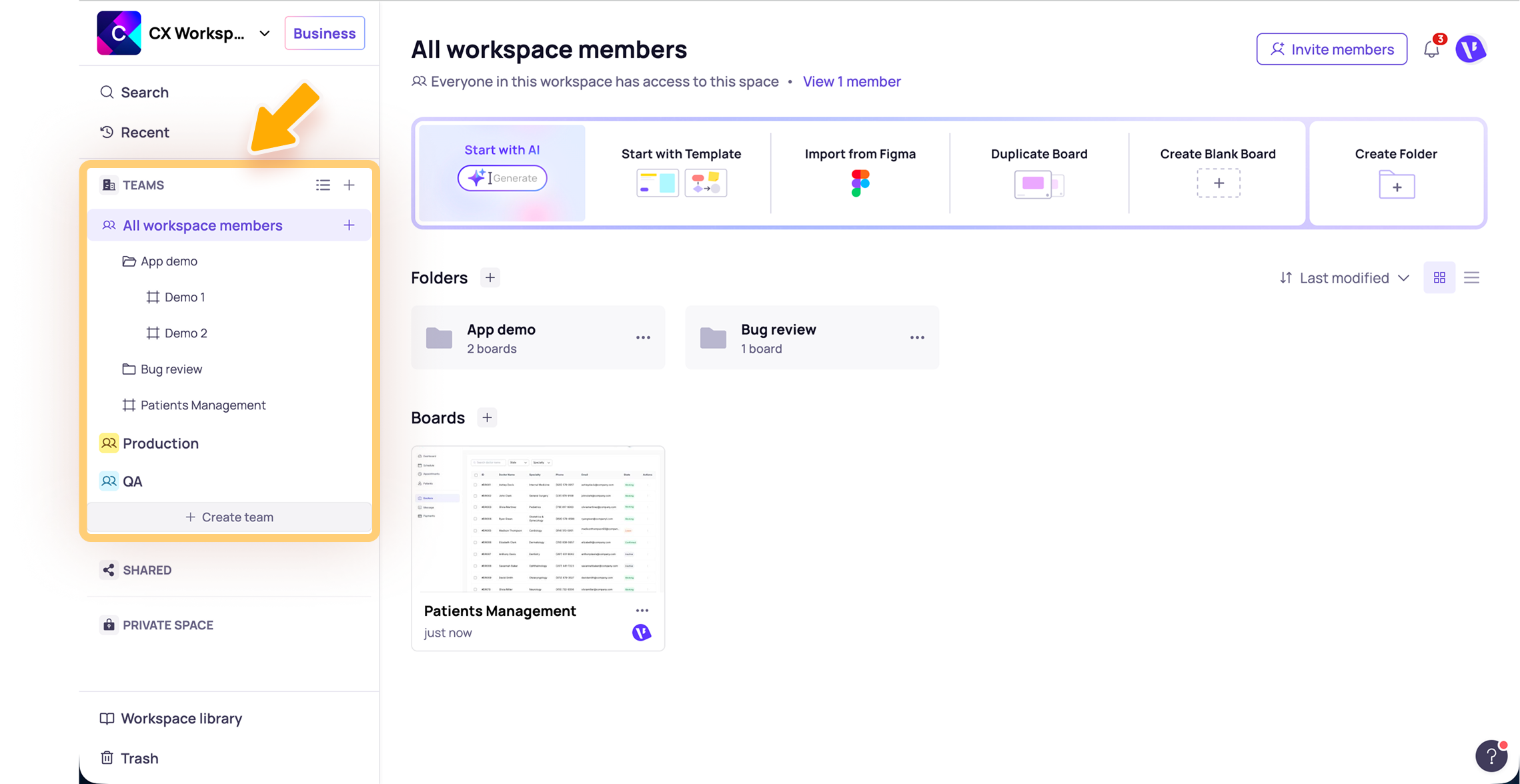
A Visily workspace is organized into different areas to help you manage your design work:
- Team Space
- Shared Space
- Private Space
- Workspace utilities
- Workspace action menu
Each area serves a different purpose, depending on whether you are working with your team, organizing your own drafts, accessing shared files, or managing workspace-level settings.
Team Space
Team Space is the shared area for workspace members. Boards and folders in Team Space are visible and editable by members who have access. In Team Space, boards and folders appear in both the left workspace panel and the main view.

Use Team Space for designs that your team needs to collaborate on, such as:
- Product or feature designs
- Team projects
- Shared design resources
- Work that should be accessible to other workspace members
On the Business plan, workspace admins can also create Custom Teams to manage access to specific folders and boards.
Shared Space
Shared Space shows private boards or folders that other users have shared with you.
Use Shared Space to quickly access work that does not belong to your own Team Space or Private Space, but has been shared with you by other users for viewing or collaboration.
Private Space
Private Space is your personal area in the workspace. It is visible only to you and is useful for work that is not ready to share yet. Private Space is available on the Pro and Business plan.
Use Private Space for:
- Drafts
- Experiments
- Early design ideas
- Personal references
- Work you want to organize separately before sharing
Workspace utilities
Workspace utilities help you quickly find, access, and manage your work.
- Search: Find items across Visily, including commands, folders, boards, and guide content.
- Recent: Quickly access boards and folders you recently opened across workspaces.
- Workspace Library: Store and access templates and resources available within the workspace. Workspace Library is available on the Pro and Business plans.
- Trash: View deleted boards and folders before they are permanently deleted. You can restore or permanently remove deleted items from here.
Workspace action menu
Click the workspace name to open the workspace dropdown menu.
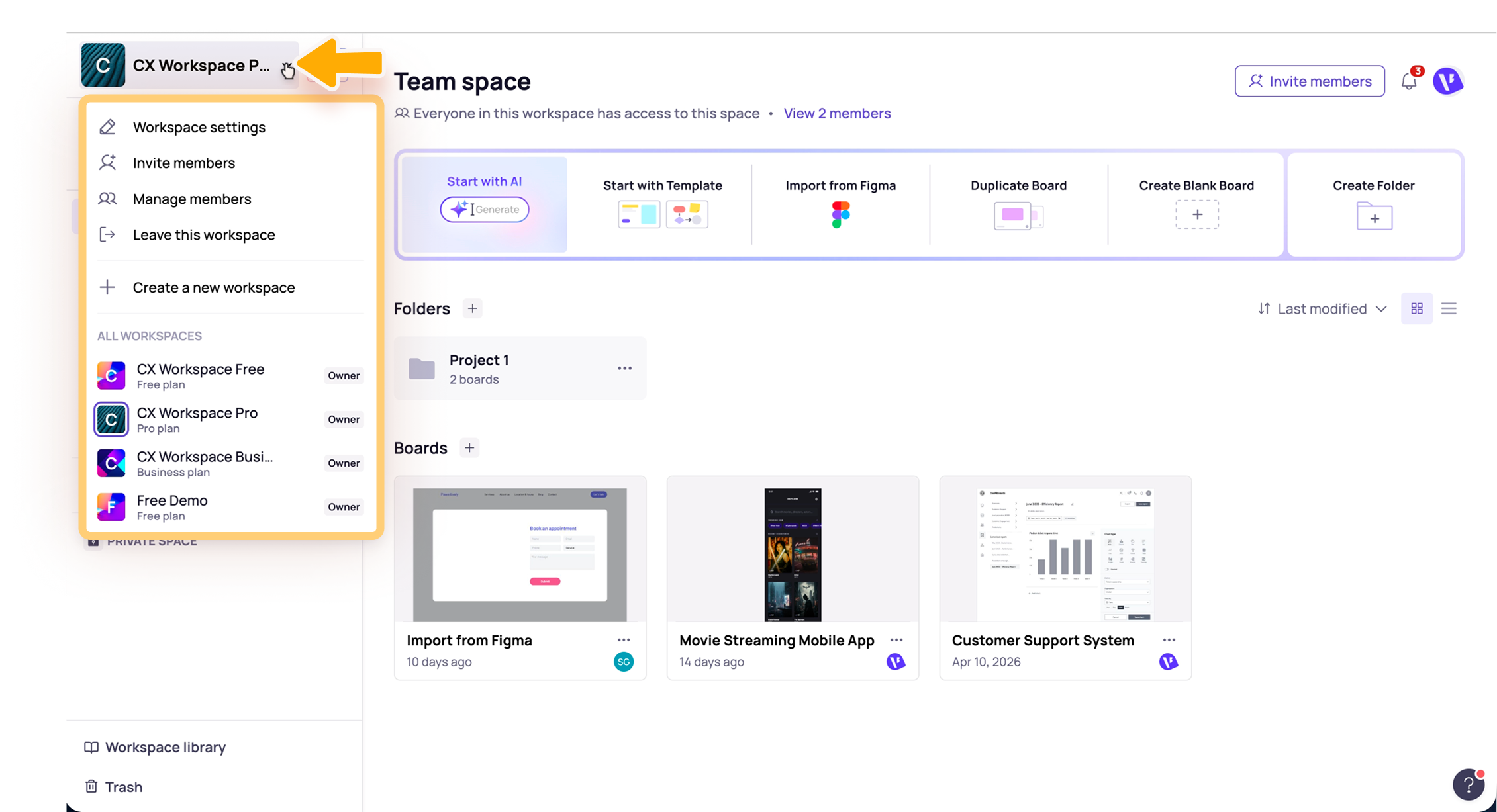
Use this menu to:
- Switch between workspaces: Move between the workspaces you have access to.
- Open workspace settings: Manage workspace details, members, billing, security, and other settings based on your role and permissions.
- Invite members: Add new people to the workspace so they can collaborate with your team.
- Manage members: View workspace members, update roles, or remove members when needed.
- Leave the current workspace: Remove yourself from the workspace. If you are the Workspace Owner, you may need to assign a new owner before leaving.
- Create a new workspace: Set up a separate workspace for a new team, project, or organization.
Note
- Within Team Space, Private Space, and Custom team spaces, you can continue organizing your work by creating boards and folders. Learn more in How to create a board and How to create a folder.
Need more help?
If this does not solve your issue, contact support and include a screenshot if possible.