How to use board version history
Use Board version history to review earlier states of your board, save important milestones, restore the entire board to a previous version, or copy specific designs without replacing your current work. Visily creates automatic version snapshots and also lets you save versions manually.
Before you start
- Make sure you have permission to edit the board.
- Version history availability and retention depend on your workspace plan:
- Free plan (Starter): Version history is not available.
- Pro plan: Versions are retained for 7 days.
- Business plan: Versions are retained for 30 days.
Access the board version history
- Open the board you want to review.
- Open Board version history in either of these ways:
- Open the dropdown menu next to the board name, then select Version history.
- Open Board settings, then select Version history.
The version history view opens, with the Version history panel showing all available automatic and manually saved versions of the board.
Understand the version history
Each version includes information such as when it was created and who made the related changes.
Select a version from the list to preview the board as it appeared at that time. Previewing a version does not change your current board.
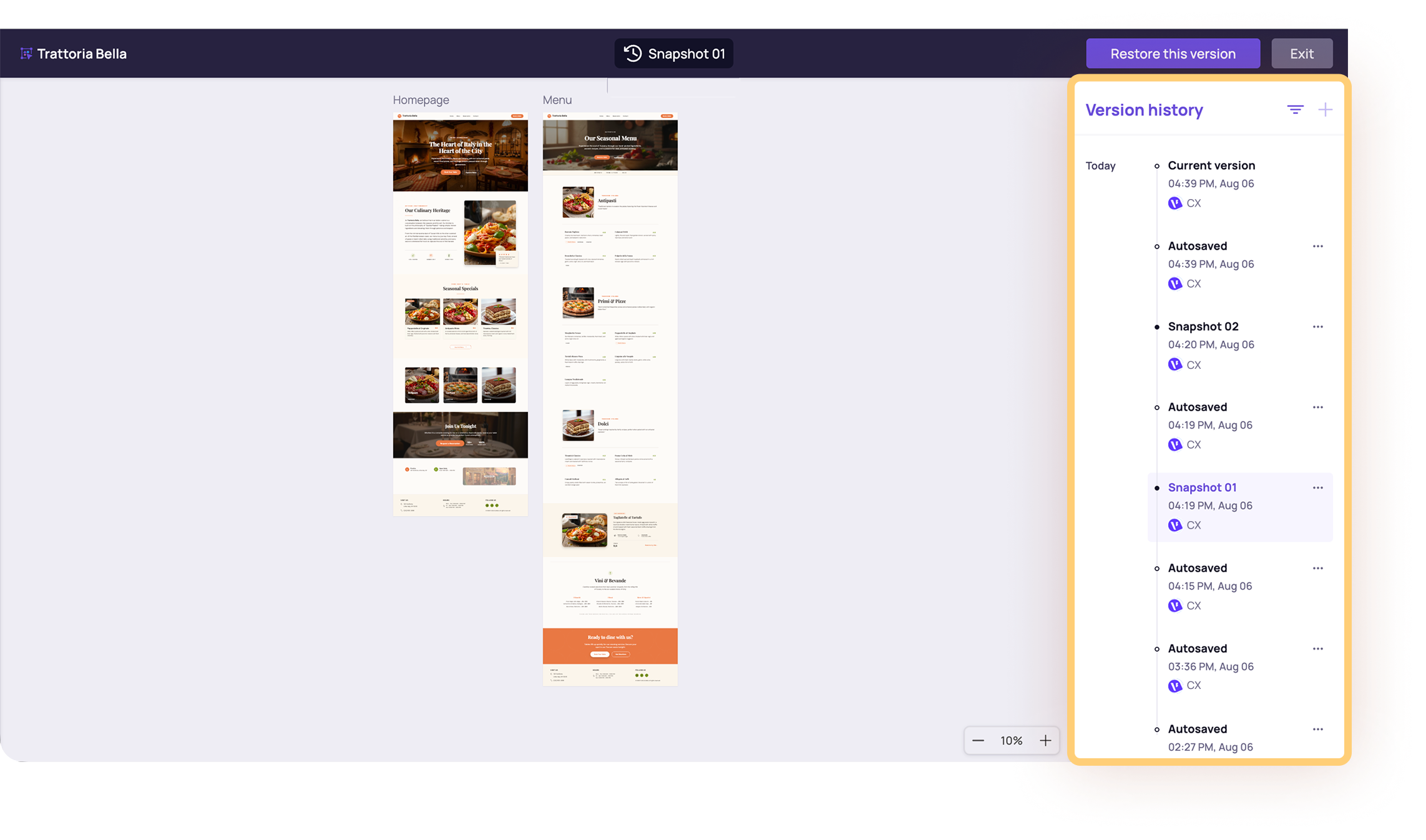
To return to your current board, select Exit.
Save current version of your board
Manually save the current version when you reach an important milestone or before making significant changes.
- Open Version history.
- Select Save current version from the version history panel.
- Enter a clear name for the version. Confirm to save it.
Restore a previous version
Restore a version when you want the entire board to return to an earlier state.
- Open Version history.
- Select the version you want to restore.
- Review the version to make sure it contains the board state you need.
- Select Restore this version.
The selected version becomes the current version of the board.

Restoring affects the entire board. If you only need particular screens or elements, copy them from the previous version instead.
Copy designs from a previous version
You can retrieve specific designs from a previous version without restoring the entire board.
- Open Version history.
- Select the version that contains the designs you want to retrieve.
- Select the screens, sections, or elements you want to copy.
- Copy the selection.
- Select Exit to return to the current canvas.
- Paste the copied designs.
- Move or edit the pasted designs as needed.
Need more help?
If this does not solve your issue, contact support and include a screenshot if possible.