How to use layout grids and board grids
Use grids to align elements, maintain consistent spacing, and organize designs more precisely. Visily provides two types of grids:
- Layout grids apply to selected screens and help structure the content inside them.
- Board grids, also called Grid Mode, appear across the canvas and help align screens, diagram elements, and other objects.
Before you start
Make sure you have permission to edit the board and are in design editing mode.
Use a layout grid
Layout grids provide visual columns inside a screen, helping you align elements and maintain a consistent structure across different screen sizes. You can apply a layout grid to one screen or multiple screens at the same time.
Access the layout grid settings
- Select one or more screens.
- Open the Layout Properties panel.
- Turn on/off the Layout grid toggle.

You can also select Layout grid from the screen toolbar. The Layout Properties panel opens automatically and displays the layout grid settings.
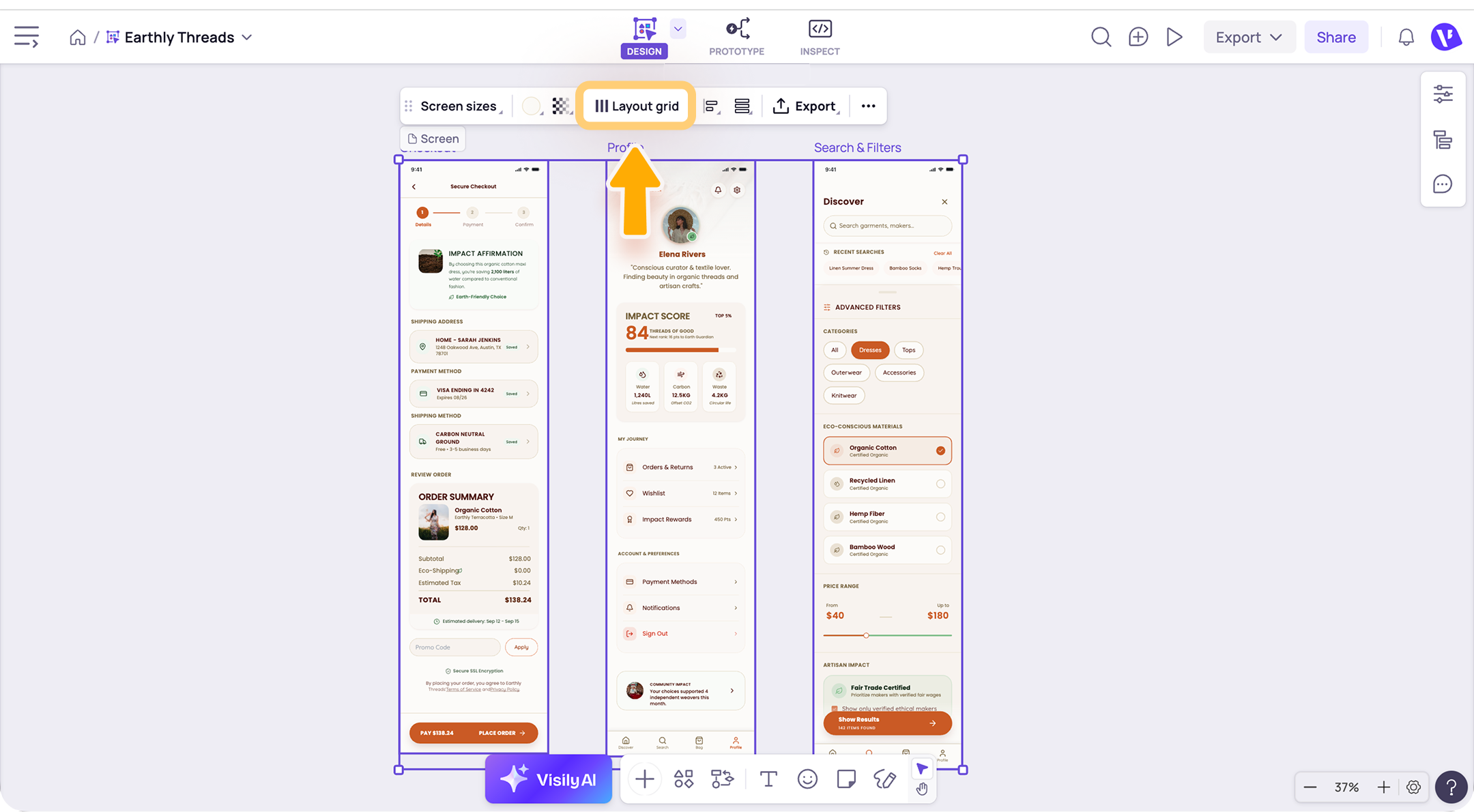
Select a layout grid preset
Visily provides the following layout grid options:
- Column: Use column-based layouts for web or mobile screens.
- Row: Divide the screen into horizontal rows.
- Grid: Create a grid with both columns and rows.
After selecting a preset, you can customize its settings to fit your design.
Customize a layout grid
The available settings depend on the selected layout grid type.
- Number of columns/rows: Set how many columns/rows appear in the grid.
- Grid size: Adjust the size of each grid cell.
- Color and opacity: Change the grid color and transparency.
- Type: Choose how the columns/rows are positioned using Stretch, Left, Right, or Center.
- Width/Height: Set the width of each column or the height of each row. When using Stretch, Visily adjusts the width or height automatically.
- Margin: Set the space between the screen edge and the grid.
- Spacing: Adjust the space between columns.
When the layout grid is enabled, elements automatically snap to the edges of its columns as you move or resize them.
Use the board grid
The board grid displays a dot grid across the canvas, helping you position and align screens, diagram elements, and other objects.
To turn the board grid on or off:
- Open board settings from the bottom-right toolbar, then select Toggle board grid.
- Press Shift + G on your keyboard.
Notes
- Use a layout grid to organize elements inside a screen. Layout grids can be applied to one or multiple selected screens.
- Use the board grid to arrange objects across the canvas. The board grid applies across the entire board.
- Layout grids and board grids are editing guides and do not appear in your exported designs.
Need more help?
If this does not solve your issue, contact support and include a screenshot if possible.