How to use Quick Preview to review your prototype
Use Quick Preview to test your prototype directly on the canvas as you design. It’s useful for quick checks and fast edits, with live sync reflecting your changes immediately.
Before you start
- Switch your board to Prototype mode.
- Make sure your prototype has the screens, flows, or interactions you want to review.
How to open Quick preview
In Prototype mode of your board, you can open Quick preview using one of these options:
- To review a screen, select the screen and click Quick preview from the More dropdown above the selected screen.
- To review an interaction, select the interaction, then choose Quick preview from the top toolbar in the Prototype panel.
- To review a flow, select Quick preview from the More dropdown of the flow name tab, or open it from the flow list dropdown in the Prototype panel.

If no screen is selected, clicking Quick preview from the top toolbar in the Prototype panel will preview all screens on the board.
Use the Quick preview window
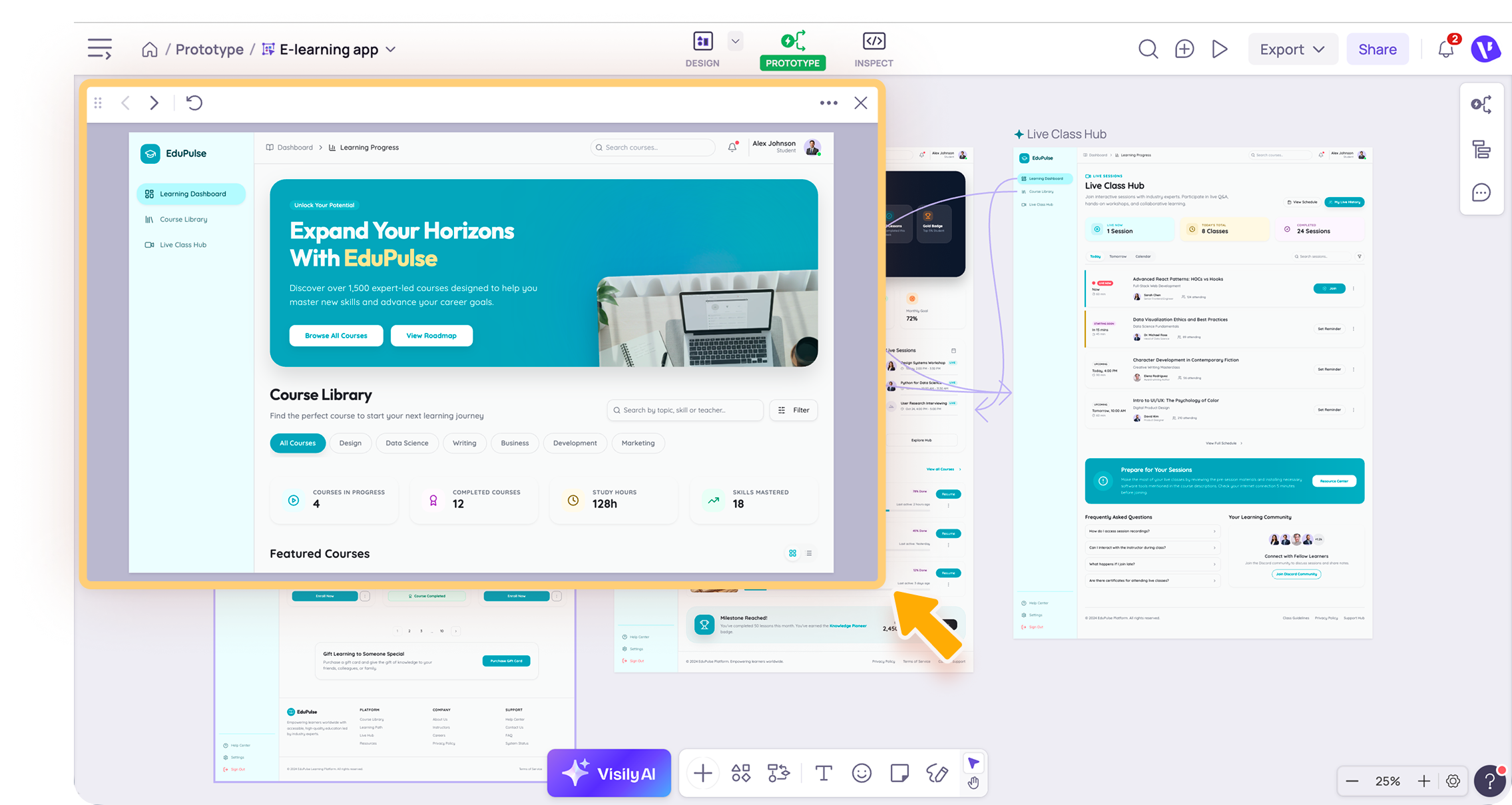
When Quick preview opens, the preview window appears in the top-left corner of the canvas.
From there, you can:
- Interact with the prototype in the preview window to check the flow, screen behavior, or interaction.
- Drag the top bar to move it around the canvas
- Resize the window by dragging its edges
- Use the left and right arrows to move between screens
- Restart the flow from the starting point or the most recently selected screen
- Adjust the zoom level from the More menu
- Select Open presentation from the More menu to review the prototype in a full presentation view.

Navigation and restart options are not available when previewing a standalone screen.
Note
- Quick preview updates automatically when you make changes to your design, so you do not need to close and reopen it.
- When you choose Quick Preview from the top toolbar in the Prototype panel, your selection is remembered. Next time, you can click the icon directly to open the view without selecting it from the menu again.
- Use Presentation mode to review or share your prototype in a full view, with options like device frames for a more realistic app experience.
- If an overlay does not appear immediately, check whether it is set to open only after a trigger happens.
Need more help?
If this does not solve your issue, contact support and include a screenshot if possible.