How to use the Visily AI Chat Assistant to generate your design
Meet the new agentic Visily AI, your smarter way to turn ideas into polished designs!
With the Visily AI Chat Assistant, you can generate screens, components, diagrams, and images from prompts, plans, references, and design instructions.
Even better, Visily AI now helps keep your designs more consistent as you build. By organizing your request into a design group, it can reuse details like your app type, screen purpose, theme, style, and common components, so every new screen feels connected, cohesive, and easier to refine.
Access the Visily AI Chat Assistant
You can access the Visily AI Chat Assistant in either of the following ways:
- From your workspace, click Start with AI.
- From inside a board, click the Visily AI button at the bottom of the board
Configure AI settings
Before generating, you can adjust AI settings to better match the result you want.
- Deep Design. Use this when you want more refined and detailed design results. It is powered by Gemini 3 Pro and is available on paid plans only.
- Images source in design. Choose whether the AI uses custom AI images, stock images, or placeholders in generated UI screens.
- Design Instructions. Set up instructions to guide the AI with your project goals, design preferences, and brand context across generations.
- Image-based guidance. Upload reference images to guide the AI visually.
- Reference-based generation. Use existing canvas content or previously generated outputs as references for new generation.
Brainstorming with Plan mode
Use Plan Mode when you want to think through your design before generating it.
Instead of creating the UI right away, Plan Mode helps you build a structured design plan based on your idea, requirements, and goals. This is useful when you are still exploring the concept, need help organizing the structure of the design, or want to clarify details before moving into visual design.
The AI may ask follow-up questions to better understand your needs, then generate a plan that you can review and refine.
Once the plan looks right, you can use it as the basis for generating the actual design in Design Mode. More information at How to use AI Plan mode.
Generate design
The Visily AI Chat Assistant supports the generation of these output types:
- UI Screens
- UI Components
- Images
- Diagrams
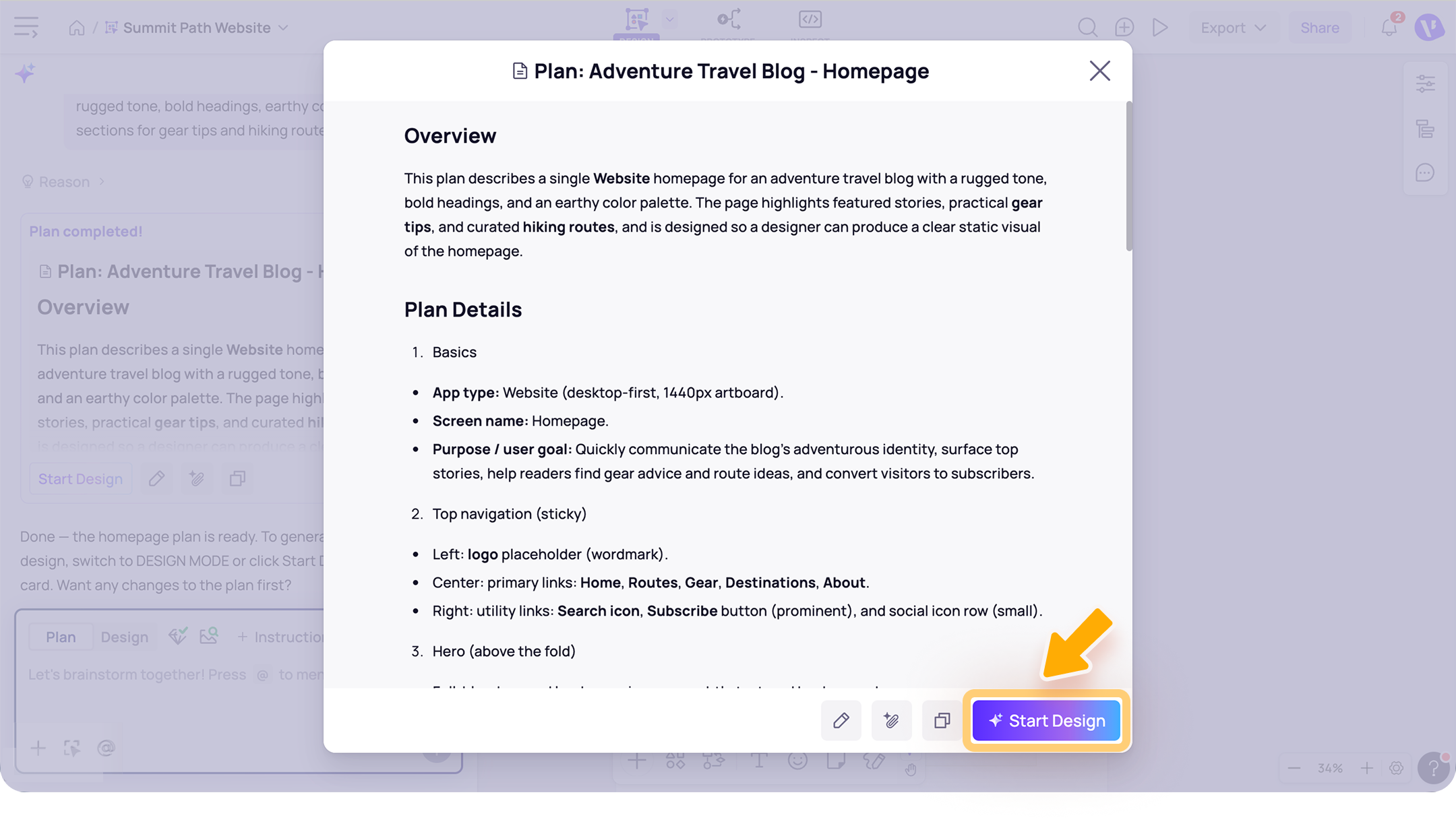
If you have done a design plan in Plan mode, just click Start design to let the AI use it as the basis for generating the actual design in Design Mode. Your design will be generated based on the approved design plan.
If you skip the planning with AI and choose Design mode, enter a prompt in the chat box to describe what you want to create. Then press Enter or click Generate to let AI start generating your design.

The AI chat supports prompts of up to 4,000 characters on the Free and Pro plans, and up to 10,000 characters on the Business plan.
How Visily AI processes your design request
After you submit your prompt, Visily AI processes your request in a few steps to generate a consistent design output:
- Create a design group
Visily AI first organizes your request into a design group. A design group keeps related AI-generated screens together, such as screens from the same app, website, or user flow. It gives Visily AI a shared context to understand what you are building, including the app type, screen purpose, theme, style, and commonly used components. - Generate a theme for the design group
Visily AI creates a theme based on your prompt, selected settings, and any references you provide. This theme defines the overall visual direction, including colors, typography, and styling. - Generate the design output.
Visily AI then generates the requested screens, components, diagrams, or images using the design group theme.
When you generate more screens to the same design group, Visily AI can reuse the group context to create screens that feel connected and consistent with the existing designs.
Review and add the generated output to your board
Once generation is complete, the output appears in the AI chat thread. You can review it either in the preview view or directly from the output card.
Review and add to your board in the preview view
Reviewing in the preview view is recommended when you want to check the design in more detail.
- Click the output card to open the preview.
- Zoom in or out as needed to review the details.
- Switch to dark mode if needed. Changing Light/Dark mode on the latest version sets the default for future versions. Changing it on an older version only affects that version.
- Click Add to board to add generated screen(s) to your board.When generating multiple screens, you can add them individually by selecting a screen in the preview, opening the Visily AI menu, and choosing Add to board.
 Click View details on the theme card in the Generate theme step to view the design group theme details.
 Review and add to your board from the output card
You can also review styling options directly from the output card in the chat thread, including switching between dark and light mode, or opening Configure group theme to view the design group theme details.
To add the generated screens to your board:
- Click Add to board to add generated screen(s) to your board.
- When generating multiple screens, you can add a single screen by opening the More actions menu on that screen and selecting Add to board.
Manage the generated design group
After Visily AI generates your design, you can continue working with the design group to add more screens, apply a theme to the group, see the versions, or rename the group.
Add more screens to a design group
You can add more screens to an existing design group in a few ways:
- Send a prompt to Visily AI. Ask Visily AI to generate another screen for the same design group.
For example: - Copy screens from another design group. If your board has multiple design groups, you can copy a screen from one group and add it to another.
Visily AI will use the selected screen as a reference to create new screens in the target design group, adapting them to the target group’s style, theme, shared components, and platform.
To copy an individual screen, open the More actions menu on the screen and choose Copy screen to another group. - Reference an existing on-canvas screen. You can use another screen on the canvas as a reference when generating a new screen for the design group.
For example:
When you add more screens to the same design group, Visily AI can reuse the group context to keep the new screens connected and consistent with the existing designs.
Apply a theme to the group
You can apply a theme to a design group to update the look and feel of its related screens. The selected theme becomes part of the design group context and helps Visily AI keep future generated screens visually consistent.
For example:
Use @ to mention any screens, design groups, or board theme available in the board. This provides Visily AI with more context to process your request accurately.
You can select an item from the list or type directly in the chat box to mention it.
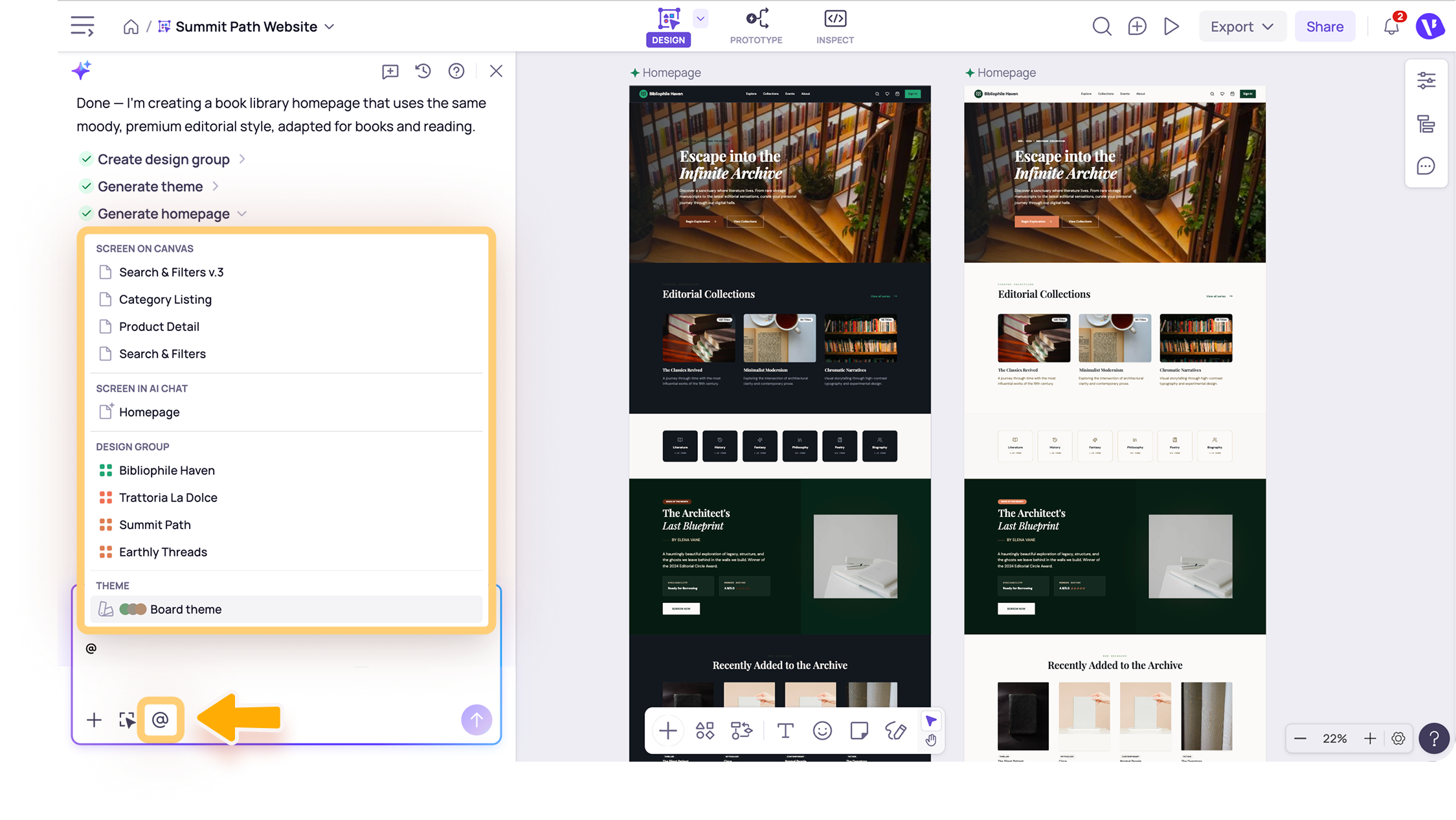
You can select an item from the list or type directly in the chat box to mention it.
View group versions
Each design group can have different versions as you continue generating or updating screens. After the first generation, each new preview shows the changes in the current version, along with all screens included in the group for that version.
To view the version details, click the output card for that version in the chat box.
Save design group theme as board theme
You can also save the design group theme as your board theme to customize further or reuse later by choosing Save as board theme in the theme details view.
Rename a design group
You can rename a design group to make it easier to organize and identify, especially when your board contains multiple generated design groups.
Modify generated output
You can continue refining a generated output directly in the chat thread, or use the Visily AI Chat Assistant to modify an existing design on the canvas.
For more detailed instructions, see How to use the Visily AI Chat Assistant to modify your design.
Manage your chat threads
You can manage your chat threads in the Visily AI Chat Assistant in the following ways:
- Start a new chat: Click New chat at the top of the chat box to begin a separate conversation. This often works best for longer conversations or when you are requesting designs unrelated to earlier prompts.
- View chat history: Open your previous chat threads to revisit past prompts and generated outputs.
- Rename a chat thread: Update the thread name from Chat history to keep your conversations organized.
- Delete a chat thread: Remove a chat thread you no longer need. Deleted chat threads are permanently removed.
Notes
- The Visily AI Chat Assistant is designed to work best with design-related prompts. For general questions or support, please use the Help Center or contact the support team.
- For best results, use a clear and specific prompt. Pairing your prompt with a visual reference helps the AI better understand your intent and produce more accurate, context-aware results. For more tips on writing effective prompts, see our Prompt Guide.
- Generating and modifying designs with the Visily AI Chat Assistant uses AI Credits. See How AI Credits work for credit usage details.
- Generated outputs can only be accessed in the same chat thread where they were created. They are not available across different chats or boards.
- You can rate the generated design on the output card to share feedback and help us improve the AI experience.
Need more help?
If this does not solve your issue, contact support and include a screenshot if possible.