Workspace settings overview
Use Workspace settings to manage your workspace information, members, plan, security, and other workspace-level options.
Before you start
The tabs and actions available in Workspace settings depend on your workspace role and plan:
- Workspace Owner and Admin: Can access most management tabs, including members, billing, company domains, license requests, teams, and security settings where available.
- Workspace Editor and Viewer: Can view only basic workspace information and the member list.
- Guest: Cannot access Workspace settings.
How to access Workspace settings
- Open the workspace you want to manage.
- Click the workspace name to open the Workspace menu.
- Select Workspace settings.
The Workspace settings view will open, where you can access the tabs and management options available for your role and plan.
Workspace settings tabs
General
Update basic workspace information, such as its name and logo. You can also leave the workspace from this tab.
Workspace Owners and Admins can also permanently delete the workspace.
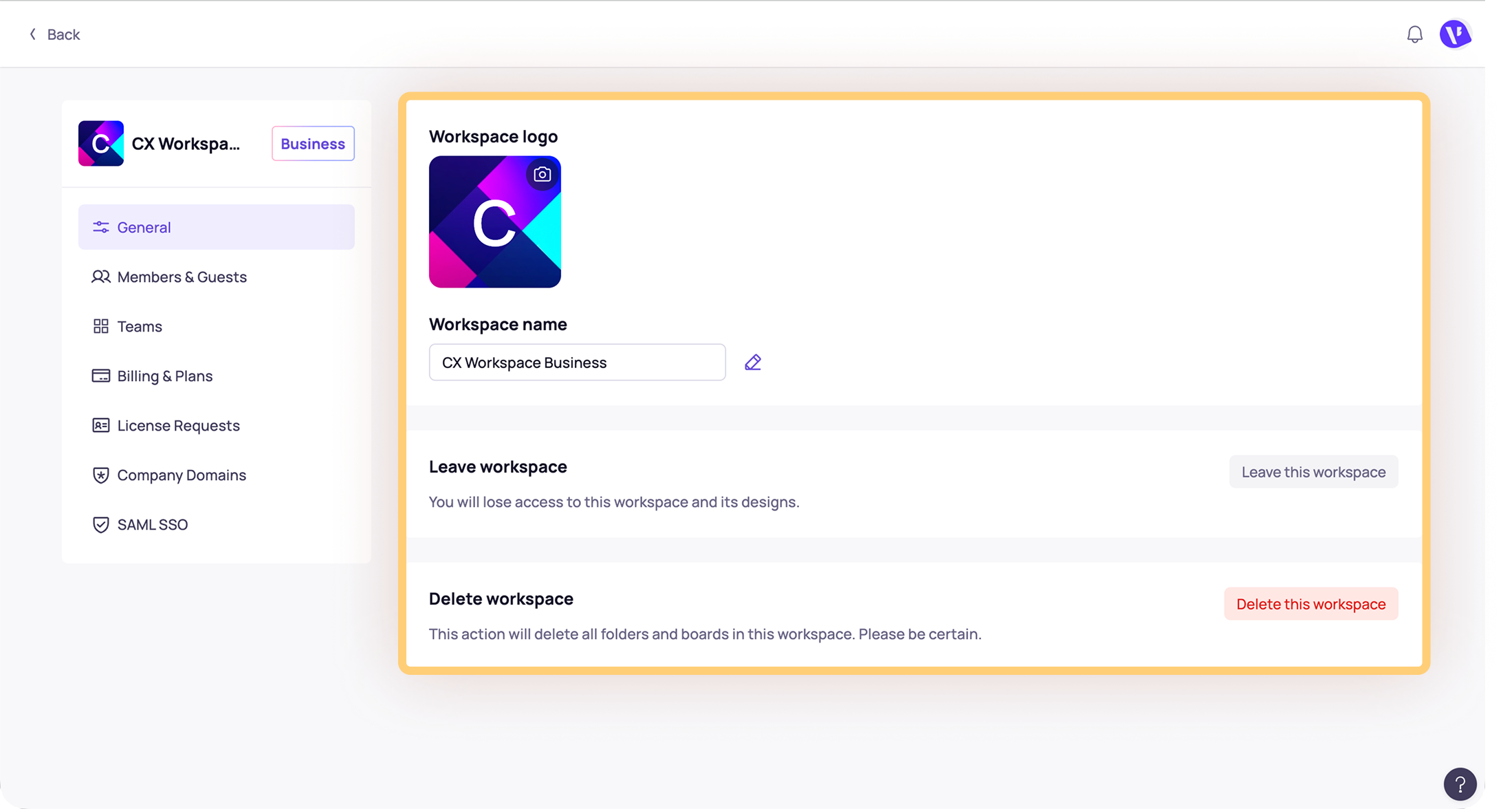

Deleting a workspace permanently removes all folders and boards inside it.
Members & Guests
Invite and manage workspace members and guests, update their roles and permissions, or remove their access.

The Guests list is available on paid plans.
For step-by-step instructions, see How to manage members and guests in a workspace.
Teams
View and manage Custom Teams in your workspace. This tab is available to Workspace Owners and Admins on the Business plan.
Billing & Plans
View and manage your subscription, billing cycle, licenses, payment details, invoices, and cancellation options.
This tab is available on paid plans and can be accessed by Workspace Owners and Workspace Admins.

You can cancel your subscription from this tab. For step-by-step instructions, see How to cancel your subscription.
For more billing-related guidance, visit How to manage billing and plans for your workspace.
License Requests
Review requests from members or guests who need access that requires a license.
Workspace Owners and Admins can approve or decline each request. This tab is available on paid plans.
For step-by-step instructions, see How to manage license requests in your workspace.
Company Domains
Add and manage verified company email domains to help coworkers discover the workspace and access shared boards or folders.
For step-by-step instructions, see How to set up your Company Domain.
SAML SSO
Configure SAML Single Sign-On for secure, centralized access through company email accounts. This tab is available on the Business plan.
For step-by-step instructions, see Set up SAML SSO for your workspace.
Need more help?
If this does not solve your issue, contact support and include a screenshot if possible.