How to use Paste to replace

How to use Paste to replace

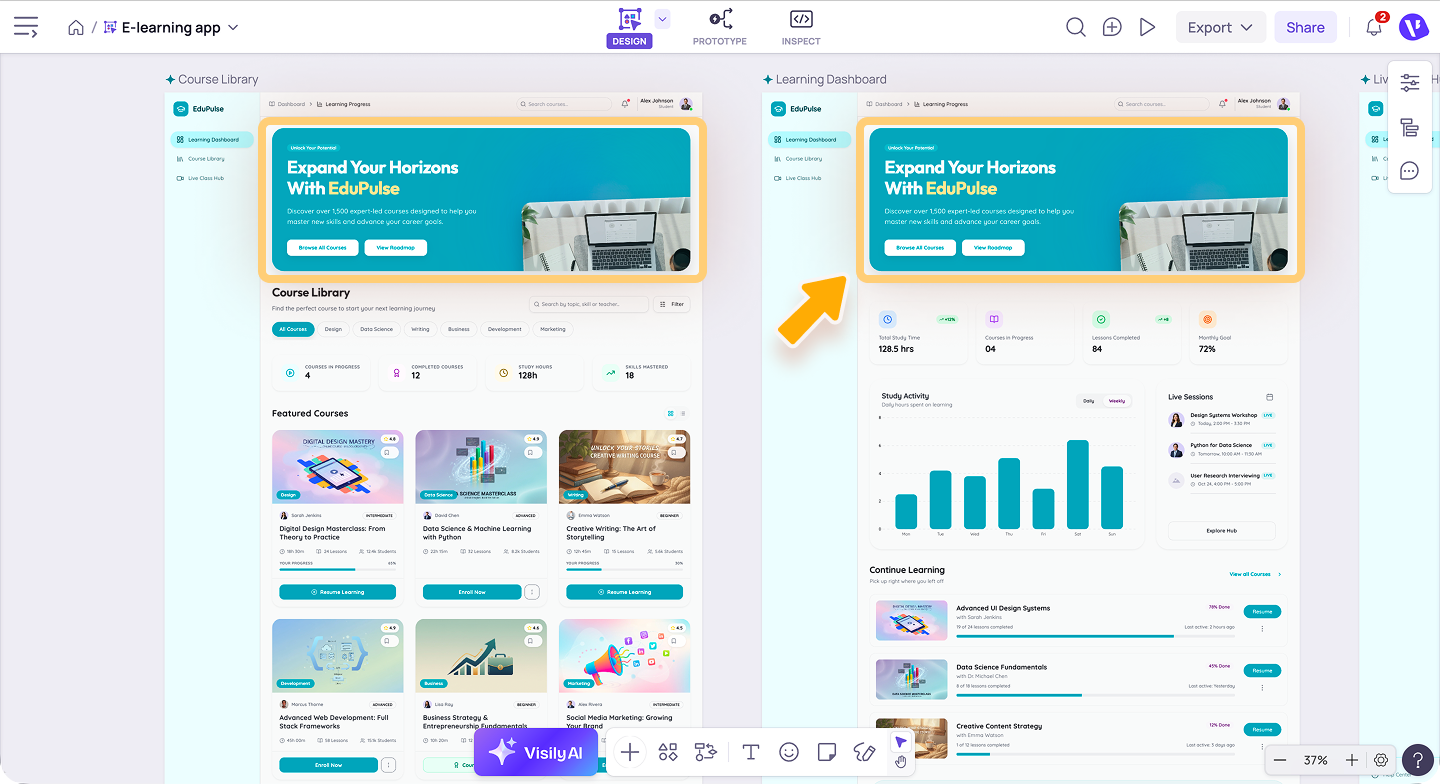
Use Paste to replace when you want to replace an existing design element with another copied element while keeping it in the same position on the canvas.
This is useful when you want to quickly swap content, update a design variation, or replace a placeholder element without manually resizing and repositioning the new one.

Before you start

Make sure you have:
  1. An element or component that you want to copy
  2. Another element on the canvas that you want to replace
You can use Paste to replace with common design objects such as buttons, images, cards, icons, text blocks, components, or other supported elements.

How to use Paste to replace

  1. Select the element you want to use as the replacement.
  2. Copy it using one of these options:
    1. Press Cmd + C on Mac or Ctrl + C on Windows
    2. Right-click the element and select Copy

  3. Select the existing element you want to replace.
  4. Right-click the selected element and select Paste to replace.

The copied element will replace the selected element on the canvas. The new element is placed in the same area as the original element, helping you keep your layout consistent without needing to manually move it into place.
Notes

  1. Paste to replace is different from regular paste. Regular paste adds a new element to the canvas, while Paste to replace swaps the selected element with the copied one.
  2. If the result does not look right, you can press Cmd + Z on Mac or Ctrl + Z on Windows to undo the action.
Need more help?
If this does not solve your issue, contact support and include a screenshot if possible.
    • Related Articles

    • How to use AI Plan mode

      This article explains how to use AI Plan Mode in Visily. Plan Mode helps you create a structured design plan before generating the actual design. Access and use AI Plan mode In the Visily AI chat box, choose Plan Mode. Enter a prompt describing what ...
    • How to use Omni Search

      Use Omni Search in Visily to quickly find boards, folders, commands, features, and helpful resources from one search box. You can open Omni Search from both the workspace homepage and the board editor. What you can search With Omni Search, you can ...
    • How to use Flows to organize your prototype

      A flow in Visily prototype mode is a set of connected screens that represents a specific user journey in your prototype. Use flows to organize prototype paths in your board, such as onboarding, sign-up, checkout, or other user journeys. Before you ...
    • How to use Quick Preview to review your prototype

      Use Quick Preview to test your prototype directly on the canvas as you design. It’s useful for quick checks and fast edits, with live sync reflecting your changes immediately. Before you start Switch your board to Prototype mode. Make sure your ...
    • How to use the Visily AI Chat Assistant to generate your design

      This article explains how to use the Visily AI Chat Assistant to generate your design. You can use it to create new designs from a prompt, with optional visual guidance and AI settings to better match your design goals. Access the Visily AI Chat ...