How to create and manage Custom Teams in your workspace
Custom Teams help you organize workspace members into separate teams and control who can access specific boards and folders.
Before you start
- Custom Teams are available on the Business plan.
- The Team space in Business plan is called Teams. Any Custom Teams you create will also appear in this Teams area.
- The Teams area also includes a default team called All Workspace Members, which automatically includes all members in the workspace.
- Only Workspace Owner and Workspace Admins can create Custom Teams.
Create a Custom Team
- Open the Business workspace where you want to create a Custom Team.
- In the left panel, find the Teams section.
- Click the Create team or icon (+) next to Teams.
- In the Create new team popup, enter the team name and choose the team visibility
- Click Create to create the team.
After the team is created, an invite dialog will appear. From there, you can quickly copy the team invitation link or invite members directly by entering their email addresses and assigning the appropriate permission: Editor or Viewer.
Invite members to a Custom Team
To access the designs inside a specific custom team, the workspace members need to join that team. You can invite members to an existing Custom Team in either of these ways:
- Click Invite members from the top bar of the team space view.
- Open the More actions menu next to the team name, select View team members to open the dialog
Then click Invite members.
Team's members can view, edit, create, and organize folders and boards in the team based on their permission level.
Edit team settings
To edit a Custom Team, open the team settings using either of these options:
- In the team space view, click the dropdown arrow next to the team name and select Edit team settings.
- In the left panel, open the team’s More actions menu and select Edit Team Settings.
From the Settings tab, you can:
- Change the team name
- Change the team visibility
- Delete the team

Deleting a team will also remove all folders and boards inside it. This action cannot be undone.
Manage team members
To update a member’s permission, open the Members tab view of the Team settings dialog:
- Find the member you want to update.
- Click their permission dropdown, such as Viewer or Editor.
- Select the new permission or remove the member from the team.

Team owners cannot have their permissions changed.
Leave a Custom Team
To leave a team, open the team More actions dropdown menu and select Leave team.
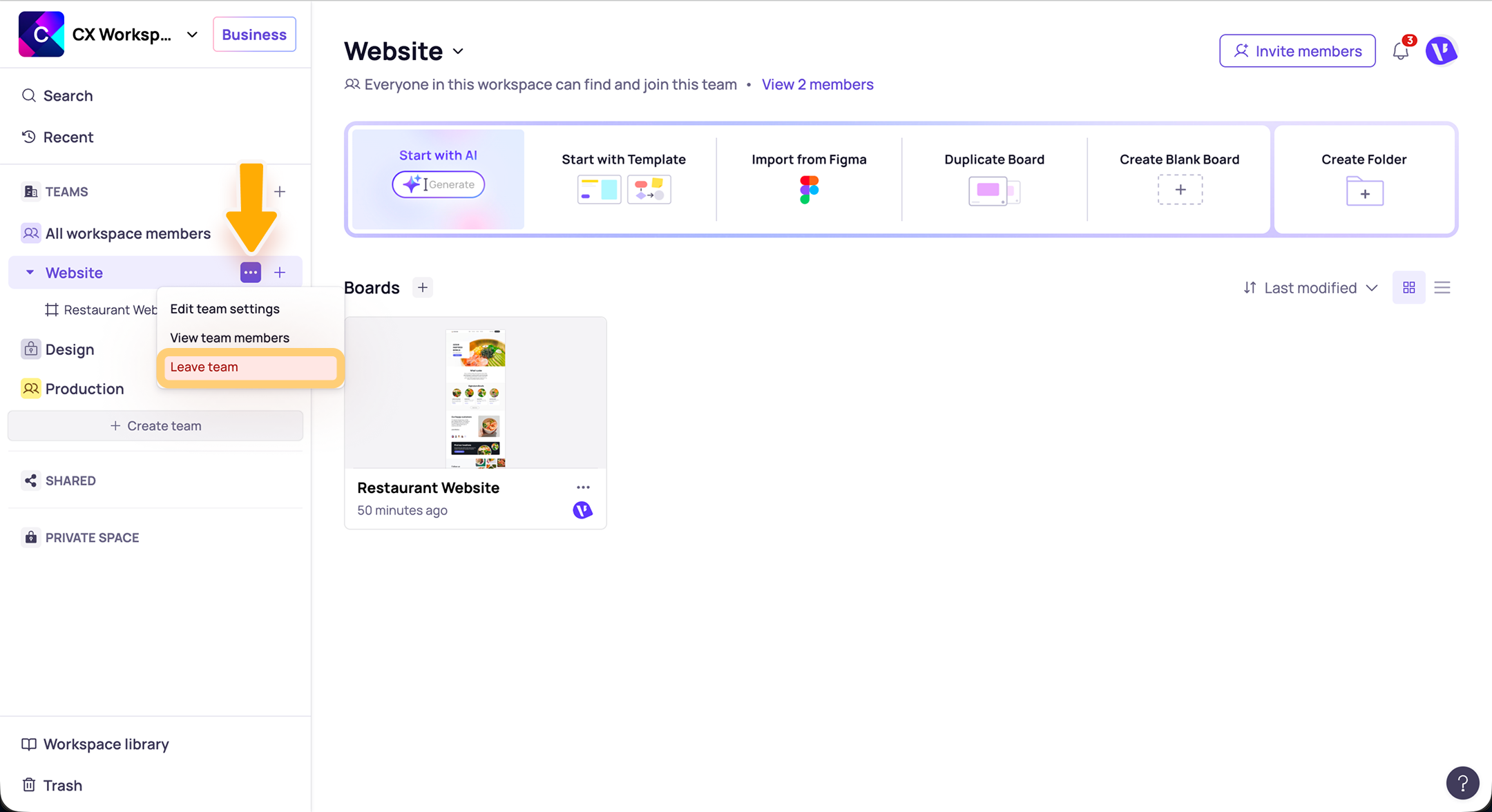
If you are the team owner, you will need to assign another member as the new owner before leaving.
Note
- Your permission in a team may be different from your workspace permission, but it cannot be higher than your workspace permission. For example, if you are a Viewer in the workspace, you cannot be an Editor in a team.
Need more help?
If this does not solve your issue, contact support and include a screenshot if possible.