How to set up a board theme
Set up a board theme to keep your design style consistent across the board. A board theme includes key design elements such as colors, text styles, shadows, and corner radius.
Before you start
- Make sure you have permission to edit the board.
- Themes are applied in Hi-fi design mode. Theme settings are not applied in Lo-fi design mode.
How a board theme is applied when creating a board
A board theme can be set up when you create a board, depending on how you start designing.
- Start with AI: Visily AI generates screens with a theme applied to its design group. This group theme may differ from the board theme. You can reapply the board theme to those designs or save the group theme as the board theme if needed. For more details, see How to use the Visily AI Chat Assistant to generate your design.
- Start with a template: You can edit the theme for the app or flow template before adding it to the board.
- Create a blank board: The board uses Visily’s default theme. If your workspace has a Workspace Theme applied, the new board will follow that theme instead.
Access Board Theme Settings
After a board is created in Hi-fi design mode, you can modify its theme at any time from Theme Settings.
- Open the board where you want to set up or update the theme.
- Open Theme from the bottom toolbar of the board.
The Board Theme panel will open. From there you can edit theme elements, save the current theme as a Workspace Theme, or apply a theme from another source.
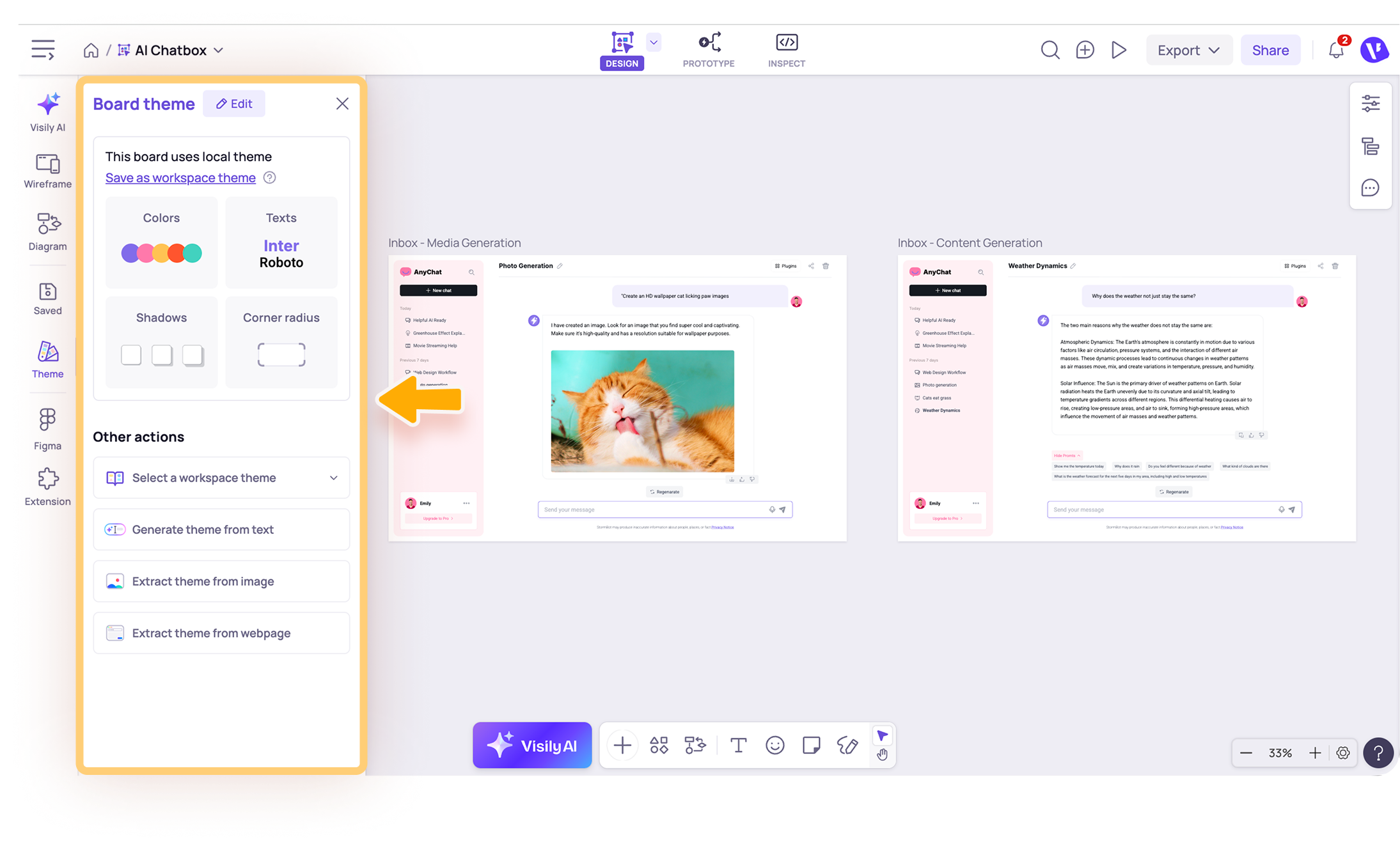
Edit the board theme
- In Board Theme panel, click Edit to enter theme editing mode.
- Choose the theme element you want to update:
- Colors: Adjust color shades, update main colors, semantic colors, or the gray color set.
- Texts: Customize primary and secondary fonts, and set up text presets.
- Shadows: Modify shadow styles to add depth and contrast.
- Corner Radius: Adjust corner curvature for a square, rounded, or circular look.
- Preview how the changes affect your board.
- Click Apply to update the board theme.
After you apply the changes, the updated theme is applied to the designs on the board immediately.

For boards that include AI-generated design groups, the board theme applies only to screens that are not part of a design group. To apply the board theme to a design group, see Apply a theme to a design group.
Other ways to create or apply a theme
You can also create or apply a board theme from other sources:
- Select a Workspace Theme: Apply a saved theme from your workspace library. This option is available on paid plans that support Workspace Library.
- Generate theme from text: Describe the color scheme, mood, and style you want Visily to create.
- Extract theme from image: Upload a UI design image so Visily can analyze its colors and style.
- Extract theme from webpage: Enter a webpage URL so Visily can generate a theme based on the site’s design.
Note
- To reuse a board theme across multiple boards, save it as a Workspace Theme.
- Generating a theme from text uses AI credits. Each generation costs 5 credits.
Need more help?
If this does not solve your issue, contact support and include a screenshot if possible.